Sigils (Seal Stamp)
Sigils are the wax-seal designs you stamp onto scrolls. They're cosmetic, but they do two important jobs:
- they make your scroll look like it actually came from someone (not a printer)
- they also lock in the "Sender" name the scroll shows later (your Seal Stamp's owner name)
TLDR: carving a Seal Stamp is permanent. Want a different sigil later? Make a new stamp.
Examples
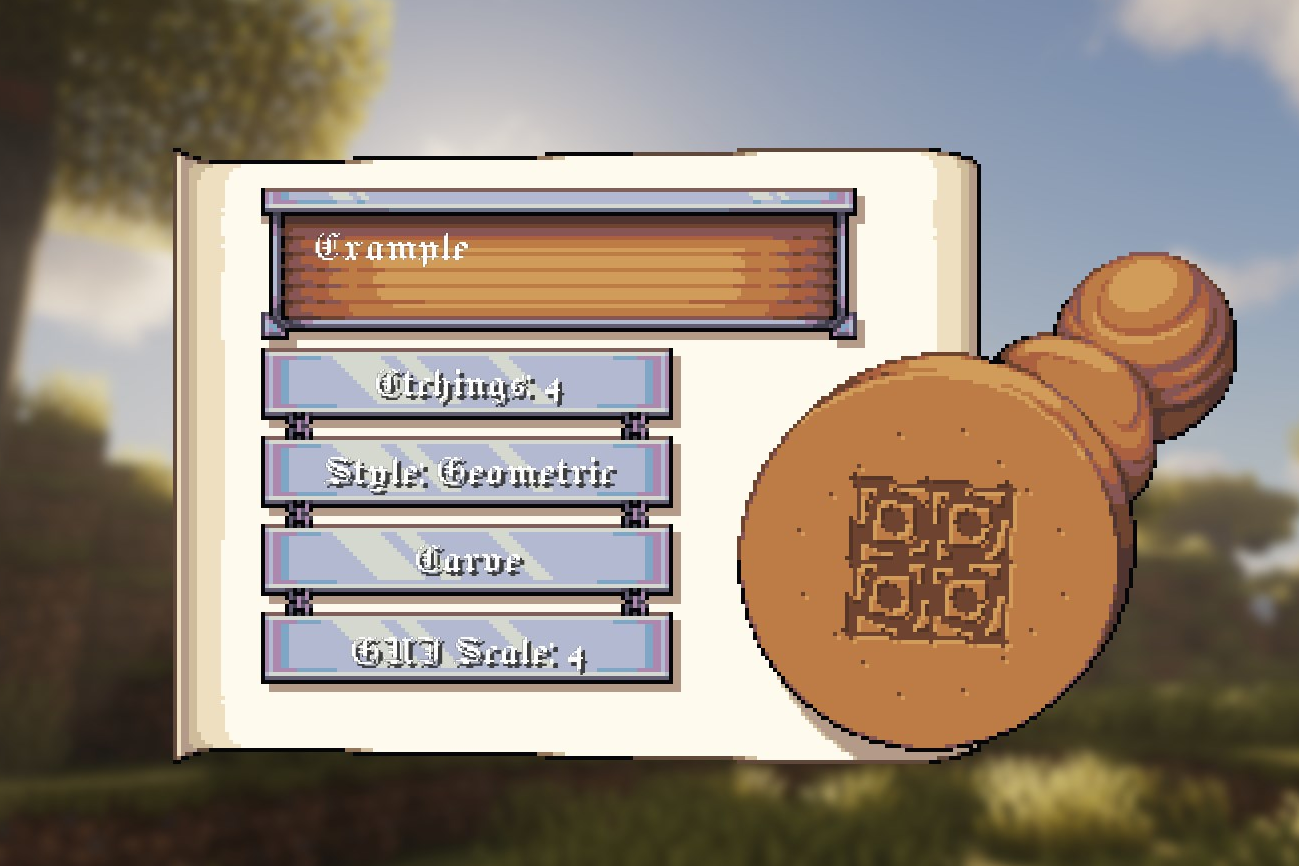
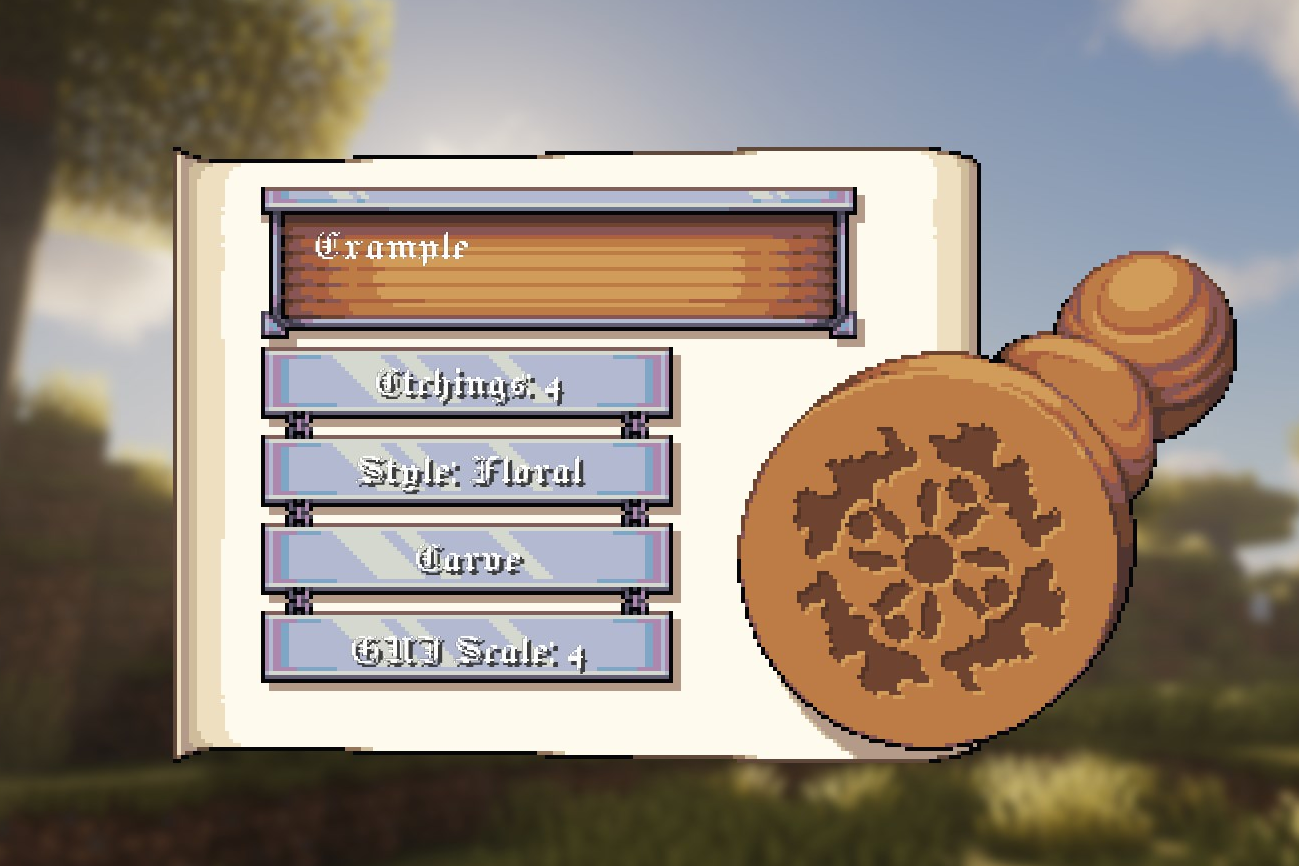
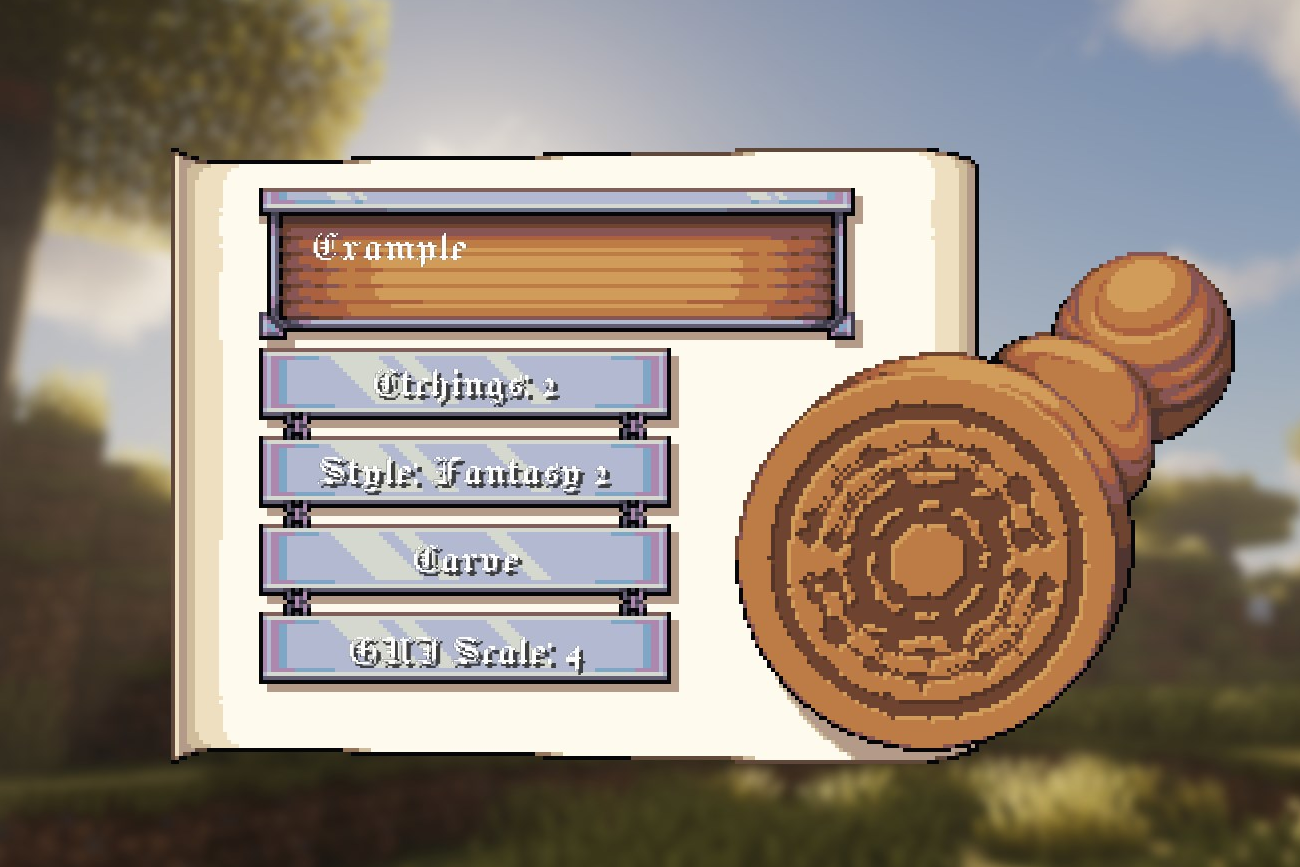
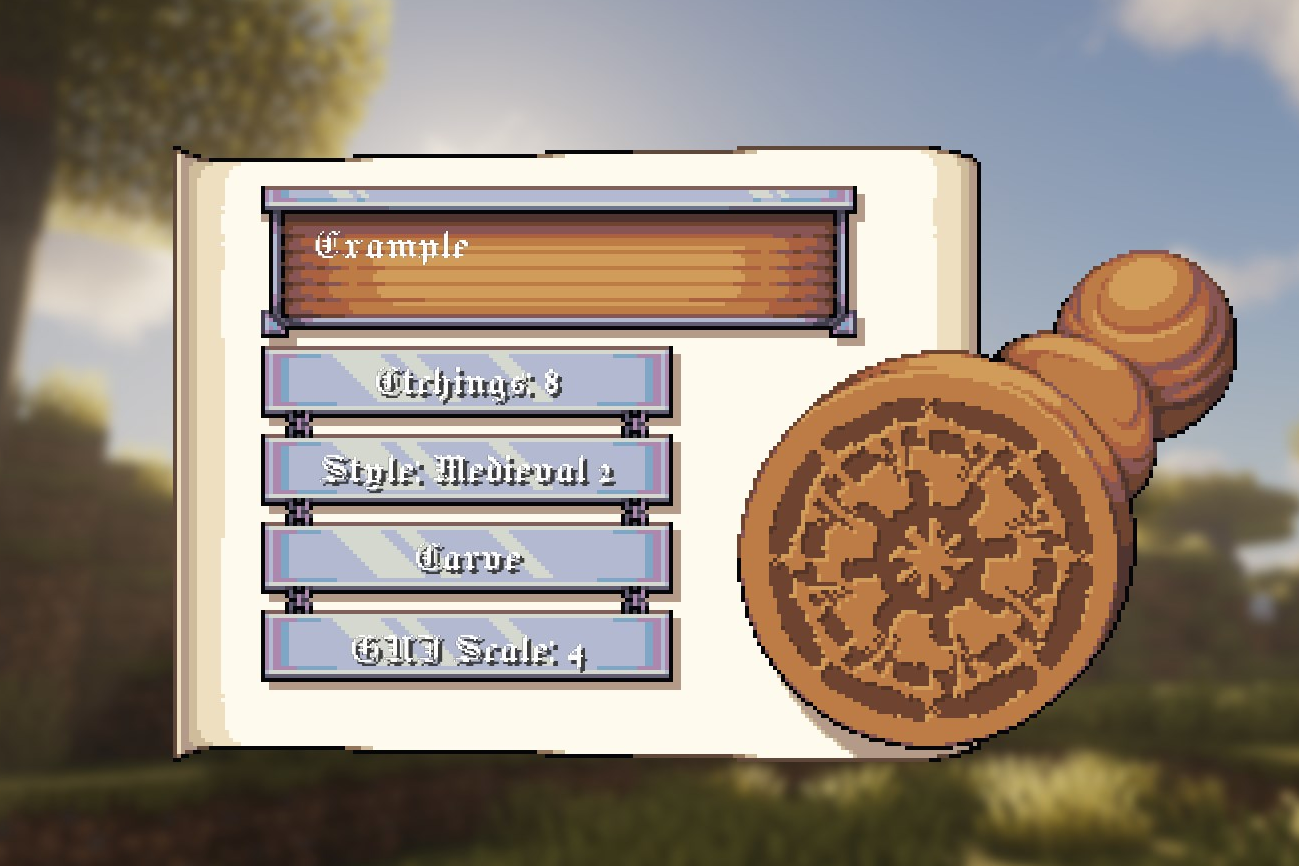
Crafting the Seal Stamp
Any planks work (oak/spruce/birch/etc). The recipe is a 1-wide shape, so you can craft it in any column.


Carving your sigil (etching the stamp)
- Put the Seal Stamp in your hand.
- Right-click to open the carving screen.
- Type a Secret (up to 2 lines / 52 characters total).
- Pick:
- Etchings (2–8): basically "how many symmetry slices" your sigil uses.
- Style: Medieval / Fantasy / Floral / Geometric (and their variants).
- Hit Carve.
Carving takes about 1 second and plays the little woodchip / etching particle bursts. When it's done, the screen closes and your stamp becomes Etched.
You can't re-carve the same stamp
Once a stamp has Seal data saved on it, right-clicking it no longer opens the carving screen. If you want a new sigil, craft a new Seal Stamp.
Stamping a scroll (where the sigil actually matters)
Your sigil gets used when you seal a scroll.
- Open an Unsealed Scroll and write your message like normal.
- Let the scroll do its sealing animation until it reaches the SEALED phase (the scroll is visually closed).
- The game pops up a Seal Stamp selector (up to 9 stamps shown).
- Left-click a stamp to select it.
- Click inside the wax area to stamp the scroll.
Favorite stamps (so you don’t keep re-picking it)
In the Seal Stamp selector:
- Left-click a stamp to select it.
- Right-click a stamp to set it as your favorite (right-click it again to clear the favorite).
Next time you seal a scroll, the selector tries to auto-select your favorite immediately.
Two gotchas:
- The selector only shows up to 9 stamps. If you’re carrying a whole stamp collection, your favorite might not be in the shown list.
- Favorites are client-side and saved to your client config (so it sticks after restart), not to the server.
Rules that matter:
- The stamp must be Etched, otherwise sealing refuses to go through.
- The scroll stores your sigil as numbers (seed/slices/style) — your Secret text is not stored on the scroll.
- The scroll's SenderName is taken from the stamp's saved Owner name.
Curios support (optional)
If you're using Curios, the stamp selector can also pick up Seal Stamps equipped in Curios slots (it uses a dedicated Seal Stamp Curios slot).
What changes the sigil (exactly)
Your carved design is generated from:
- Secret → turned into a 64-bit seed using SHA-256 (one-way hash)
- Etchings → slice count (2–8)
- Style → which shape set the generator uses
Same Secret + same Etchings + same Style = same sigil, every time.
What gets saved where (NBT / components)
The mod stores sigil data using CustomData (the 1.21+ item component).
On the Seal Stamp item
- CustomData.SealStamp.Owner (player name at carve time)
- CustomData.SealStamp.Seed (long)
- CustomData.SealStamp.Slices (int)
- CustomData.SealStamp.ShapeSet (int)
On a Sealed Scroll item
- CustomData.SealedScroll.Seed (long)
- CustomData.SealedScroll.Slices (int)
- CustomData.SealedScroll.Style (int)